Thermal Label Printer Setup: 4x6 Shipping Labels on Windows
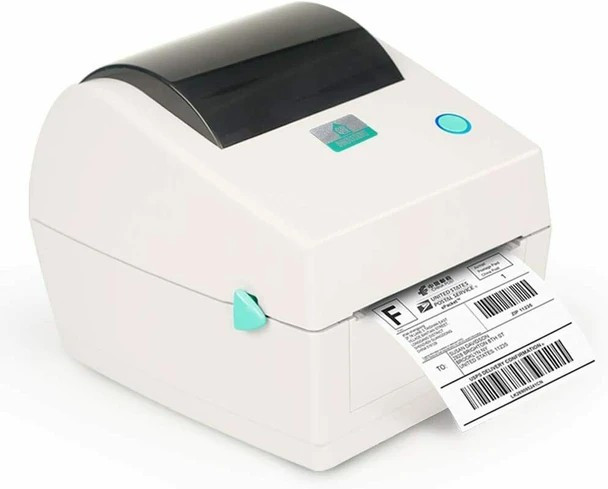
A thermal label printer is one of the biggest time savers a small seller can add before the holiday shipping rush. No more cutting printer paper, taping sheets to boxes or buying ink. But the first setup trips up a lot of people: labels print tiny, skip every other sheet or come out blank. This guide walks through thermal label printer setup on Windows step by step, plus fixes for the most common problems.
Shipping Label Printer, Direct Thermal High Speed — Shop now
What You Need Before You Start
Gather these before you plug anything in:
- A compatible computer. Our Shipping Label Printer (Windows 7 or newer) Direct Thermal High Speed Printer is listed for Windows 7 and newer. Check the product page for compatibility before buying for any other system.
- Direct thermal 4 x 6 labels. This printer uses direct thermal printing, so it needs no ink, toner or ribbon. It only works with labels made for direct thermal printing, which darken when heated.
- The printer driver. Use the driver and instructions that come with the printer. Without the correct driver, Windows cannot set the right label size.
- Your shipping platform login. The product page lists use with USPS, UPS, eBay, Etsy, Shopify and similar services.
Thermal Label Printer Setup: Step by Step
- Unbox and place the printer. Set it on a flat, stable surface near your packing area, with room behind or below it for the label stack or roll to feed in smoothly.
- Load the labels. Open the media cover and feed the labels in with the printable side facing the print head, following the diagram in the instructions. This printer has open media loading access, which makes loading quick.
- Connect and power on. Connect the printer to your computer as shown in the included instructions, then plug in the power and switch it on. The printer has bi-colored status LEDs; check the manual for what each light means before you print.
- Install the driver. Run the driver installer before you try to print. When it finishes, the printer should appear under Printers and Scanners in Windows settings.
- Calibrate the media. The printer has automatic media calibration, which detects the gap between labels. If labels ever skip or misalign, run the calibration again as described in the manual.
- Set the paper size to 4 x 6. In Windows, open the printer's Printing Preferences and select a 4 x 6 inch label size. Set it as the default so every program uses it.
- Print a test label. Print a test page from the printer properties. A clean, sharp test label means the hardware side is ready.
Set Up Your Shipping Software
Most shipping platforms let you choose a label format. Pick the 4 x 6 thermal label option instead of the standard letter-size option. Then:
- Create a test shipment or open an order you are about to ship.
- Generate the label and open the print dialog.
- Select the thermal printer, not your office printer.
- Set the scale to 100 percent or actual size, not "fit to page".
- Confirm the paper size shows 4 x 6, then print.
Once one label prints correctly, most platforms remember the setting, so future labels print with one click.
Direct thermal label printer for 4 x 6 shipping labels — Shop now
Fixing Common Thermal Label Printer Problems
Labels come out blank
The labels are most likely loaded upside down or are not direct thermal labels. Flip the stack so the printable side faces the print head, and confirm the labels are made for direct thermal printing.
Label prints too small or in a corner
The print dialog is shrinking a letter-size page onto the label. Choose the 4 x 6 label format in your shipping software, set the paper size to 4 x 6 and set scale to 100 percent.
Printer skips labels or prints across the gap
Run media calibration again. Also check that the paper size in Printing Preferences matches the labels you loaded.
Print is faded or patchy
Raise the darkness setting in the printer preferences a little at a time, and keep the print head clean. Dust and label adhesive on the print head can leave white lines. Follow the cleaning steps in the manual.
Paper jams
Make sure the label path is straight and nothing is pulling the stack at an angle. The product page notes a newly designed print head intended to prevent jams, plus tool-less print head and platen replacement if parts ever need service.
Tips for a Faster Packing Station
- Keep the label stack directly behind or below the printer so it feeds straight.
- Store spare labels in a closed box or bin away from heat and sunlight; direct thermal labels react to heat.
- Print labels in batches at the start of your packing session.
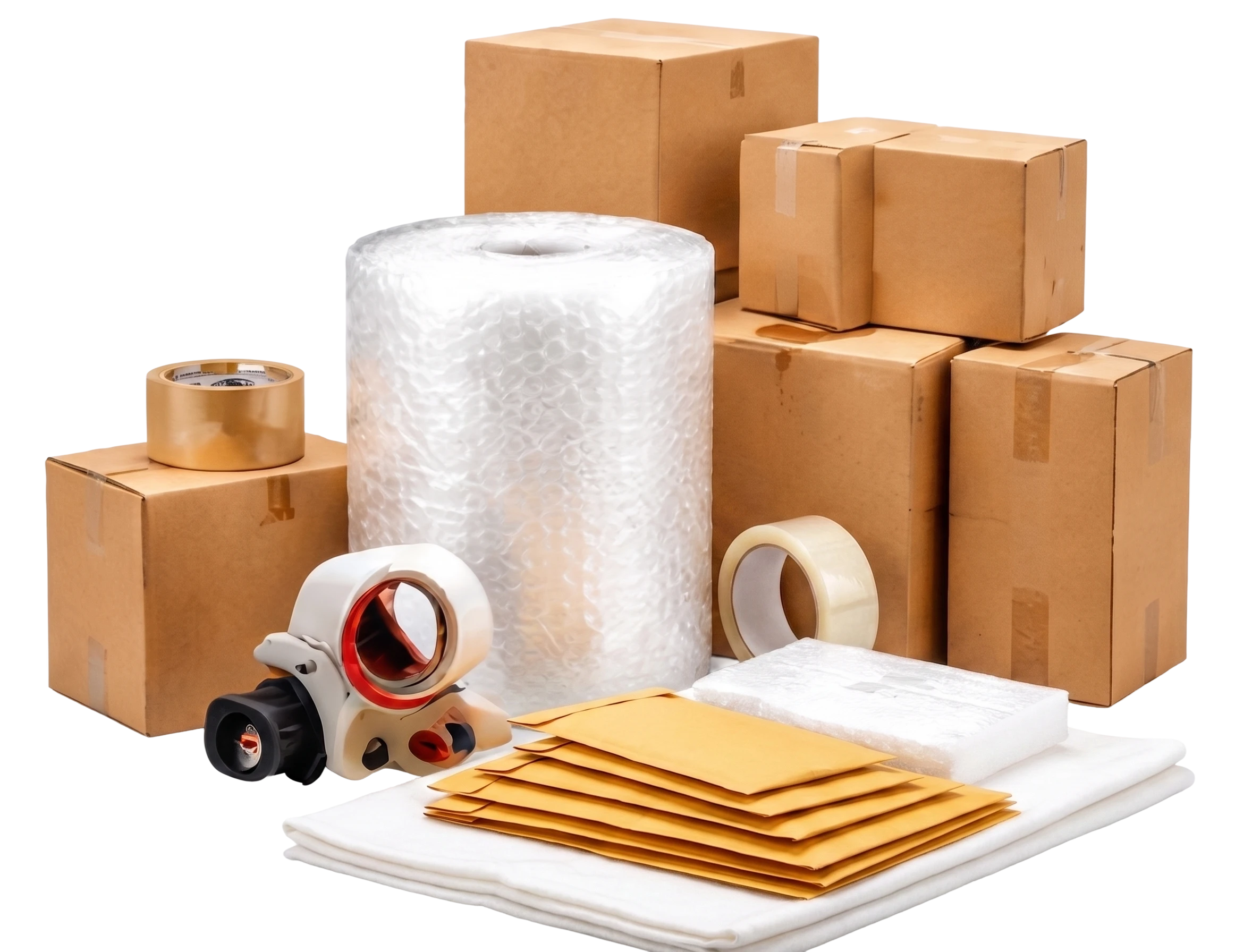
- Keep carton sealing tape and void fill within arm's reach of the printer.
- Do a test print after any Windows update in case the default paper size changes.
Frequently Asked Questions
Does a thermal label printer need ink?
No. A direct thermal printer creates the image with heat on special labels, so there is no ink, toner or ribbon to buy.
What size labels does this printer use?
The product page lists 4 x 6 inch shipping labels, the standard size used by most carriers and marketplaces.
Can I use regular printer paper in a thermal printer?
No. Regular paper does not react to heat, so nothing will print. Use direct thermal labels only.
Will it work with my Mac?
This model is listed for Windows 7 or newer. Check the product page for compatibility details before buying if you use a different operating system.
Ship Faster This Holiday Season
A properly set up thermal printer turns label printing into a one-click step. Get the Direct Thermal Shipping Label Printer, then stock up on tape, wrap and more from our Shipping Supplies collection and Printers section.
Recent Posts
-
How to Organize Toys With Clear Storage Bins
Toy clutter tends to peak right before the holidays, when birthday gifts from the year are still sca …Oct 23, 2026 -
Folding Chairs for Church Halls and Community Centers
Church halls, fellowship rooms and community centers ask more of their seating than almost any home. …Oct 23, 2026 -
Restaurant Bus Cart Guide: Using a Utility Cart for Bussing
Every busy dining room hits the same wall at some point in a shift: dirty plates stack up, servers m …Oct 23, 2026