How to Print Shipping Labels at Home on Half Sheet Labels
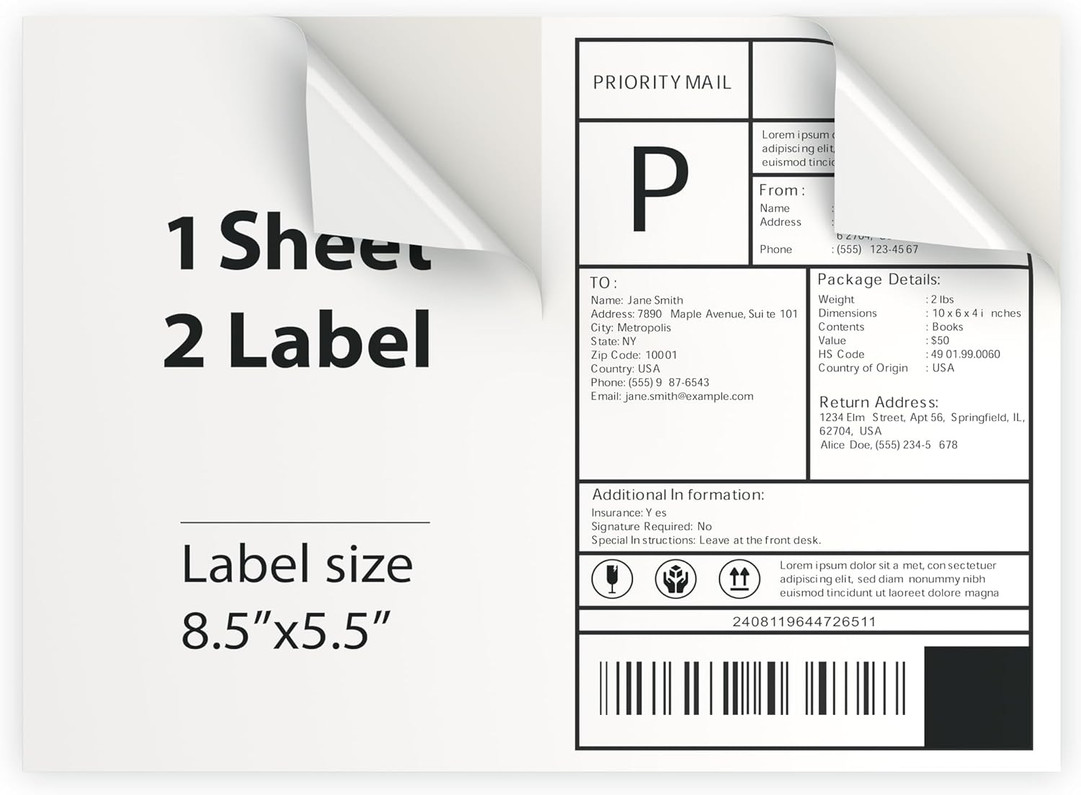
You do not need a dedicated label printer to ship packages from home. If you have an ordinary home or office printer, you can print shipping labels at home on half sheet labels: self-adhesive sheets split into two 8.5 x 5.5 inch labels. You print, peel and stick, with no scissors and no packing tape over a sheet of paper.
This guide covers how half sheet labels work, how to set up your printer so the label lands in the right place, and how to fix the most common problems before they cost you a reprint or a delayed package.
What Are Half Sheet Shipping Labels
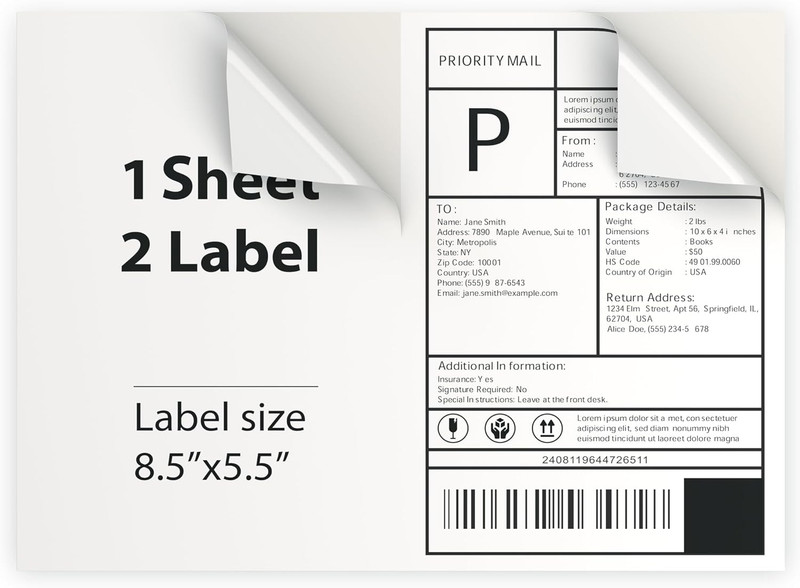
A half sheet label is a standard letter-size sheet (8.5 x 11 inches) with an adhesive face cut into two equal labels, each 8.5 x 5.5 inches. The backing peels away from one half at a time, so you can print one label or two per sheet.
Half sheets are a good fit when:
- You ship a handful of packages a week and do not want to buy a separate label printer.
- Your carrier or marketplace lets you download labels as a letter-size PDF with the label on one half of the page.
- You want a clean, professional look instead of a paper label taped to the box.
If you ship dozens of orders a day, a thermal printer with 4 x 6 labels is usually faster. For occasional and small-batch shipping, half sheets work well.
What You Need
- A standard printer that handles label stock. Check your printer manual for label support and the recommended tray.
- Half sheet labels such as the Premium 8.5x5.5 Round Corner Shipping Labels, which come in pack options from 100 sheets (200 labels) up to 2,000 sheets (4,000 labels). The product page describes them as compatible with standard printers, with round corners and an adhesive made to stick to boxes and envelopes.
- A label file from your carrier or selling platform, usually a PDF.
- One plain sheet of paper for a test print.
How to Print Shipping Labels at Home: Step by Step
1. Choose the right label format when you buy postage
Most shipping tools ask what kind of printer or paper you use. Pick the option for a standard letter-size page, often called "8.5 x 11", "letter" or "standard printer". Some tools offer a "two labels per page" layout. Avoid the 4 x 6 thermal option unless you plan to scale it, because a 4 x 6 file will not line up neatly with an 8.5 x 5.5 label.
2. Open the PDF and check the layout
Before you print, look at where the label sits on the page. If it fills the top half of a letter page, it is ready for a half sheet. If the label is in a corner or rotated, look for a layout setting in your shipping tool rather than trying to fix it in the print dialog.
3. Set print scaling to 100 percent
In the print dialog, choose "Actual size" or set the scale to 100 percent. "Fit to page" and "Shrink oversized pages" can shift the label and shrink the barcode. Barcodes that print too small or blurry may not scan.
4. Pick the right paper and quality settings
Set the paper type to labels if your printer offers it, and use normal or best quality rather than draft. Crisp, dark barcodes scan more reliably.
5. Do a plain paper test
Print one page on plain paper, then hold it against a label sheet up to a window or light. The label should sit inside one half with a small margin on every side. If it is off, adjust the layout in your shipping tool before using a label sheet. This one test can save a full pack of labels.
6. Load the label sheet the right way
Printers differ: some print on the side facing up, others on the side facing down. Mark an "X" on a plain sheet, run it through, and see which side and which end got printed. Then load label sheets the same way so the label prints on the half you expect.
7. Peel, stick and smooth
Peel the printed half and apply it to the largest flat side of the box. Keep it away from seams, edges and old labels. Press from the center outward so no air bubbles or wrinkles run across the barcode.
Using the Second Half of the Sheet
When you only need one label, the other half is left over. You can print a second label later by turning the sheet so the unused half lines up with where your file prints. Be careful with this, though. Partly used sheets have an exposed edge that can catch inside some printers, especially laser printers that run hot. Check your printer manual, and if it advises against reusing label sheets, save the spare half for hand-written labels, return addresses or box contents notes instead.
Another option is to batch your orders and print two labels per sheet whenever possible, which avoids leftover halves entirely.
Labels for Return Addresses and Box Contents
Many sellers also use smaller labels for return addresses, packing notes and inventory. The 6000 Premium Address Shipping Labels are 3 1/3 x 4 inches, six labels per sheet, and the product page lists them as compatible with both laser and inkjet printers. They are handy for return address labels, "fragile" or "this side up" notes, and labeling bins in your packing area.

Troubleshooting Common Label Printing Problems
- Label is cut off or off center: scaling is not at 100 percent, or the file is set for a different label size. Fix the scale and the label format first.
- Barcode looks faded or streaky: switch from draft to normal or best quality, and check ink or toner levels.
- Printer jams on label sheets: use the tray your manual recommends for labels, feed one sheet at a time and fan the stack before loading so sheets do not stick together.
- Ink smears on the label: give inkjet prints a moment to dry before you peel and handle them.
- Label lifting at the corners: apply it to a clean, dry, flat surface. Dust, cold cardboard or curved surfaces weaken the bond.
Frequently Asked Questions
Can I print shipping labels with a regular printer?
Yes. Most carriers and selling platforms offer letter-size label files that print on a standard printer. Half sheet labels let you print and stick them without cutting or taping paper.
What size is a half sheet shipping label?
Each half sheet label is 8.5 x 5.5 inches, with two labels on one letter-size sheet.
Can I cover a shipping label with clear tape?
Many shippers do, to protect the label from rain and scuffs. Use clear tape, lay it flat with no wrinkles across the barcode, and do not use colored or opaque tape over any part of the label.
Should I use the 4 x 6 or the letter-size option?
Choose 4 x 6 if you have a thermal label printer. Choose the letter-size option if you print on half sheet labels with a regular printer.
Start Shipping From Home
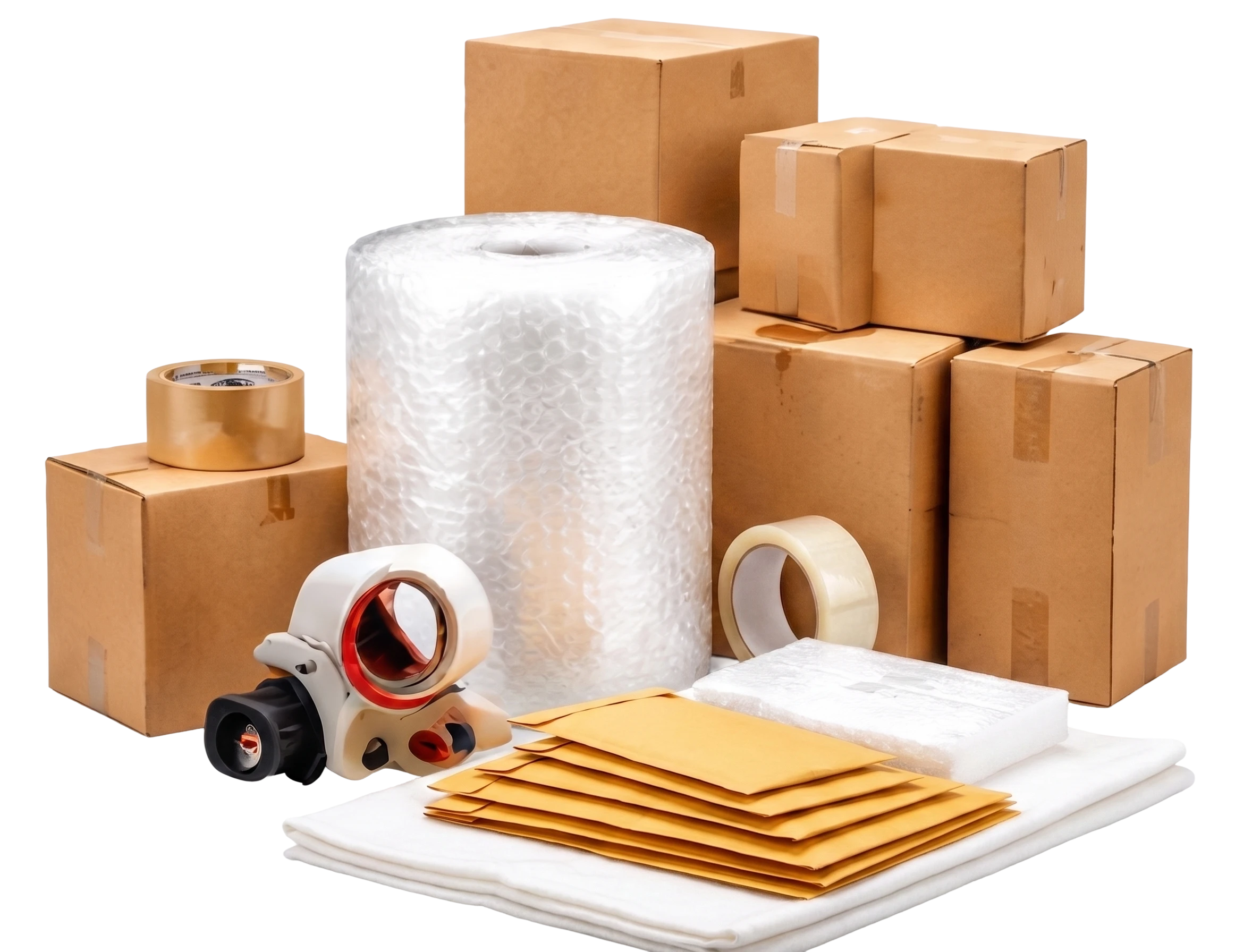
With a standard printer and the right labels, you can ship professional-looking packages from your kitchen table. Order the 8.5x5.5 half sheet shipping labels in the pack size that fits your volume, add address labels for return addresses, and find tape, wrap and more in our shipping supplies category.
Recent Posts
-
How to Load a Platform Cart Safely: Stacking and Balance
A platform cart can move an enormous amount of weight, but only if the load is set up correctly. Mos …Oct 27, 2026 -
Cookie Decorating Station Setup With a Folding Table
Holiday cookie decorating is one of the best traditions of the season, and one of the messiest. Spri …Oct 27, 2026 -
Renting vs Buying Folding Chairs: Which Makes Sense
Every time a birthday party, graduation, or holiday gathering comes up, the same question follows: s …Oct 27, 2026