How to Print FBA Labels on 30-Up Label Sheets
If you sell through Fulfillment by Amazon, every unit you send to a fulfillment center usually needs a scannable FNSKU barcode label. Printing those labels one at a time is slow, and printing them on the wrong sheet wastes labels and can lead to unreadable barcodes. The good news is that you can print FBA labels on standard 30-up label sheets with an ordinary laser or inkjet printer once your settings are right.
This guide explains what an FNSKU label is, how to print a full sheet of FBA labels so they line up correctly, where to place them on your products, and how to avoid the mistakes that cause labels to be rejected or rescanned.

What Is an FNSKU Label
An FNSKU is the fulfillment network SKU that the marketplace assigns to your listing. It is the barcode the warehouse scans to know that a unit belongs to you. The label normally shows the barcode, the FNSKU number, a short product title and the item condition. Because the barcode identifies your specific inventory, it must be easy to scan and must be the only scannable barcode visible on the outside of the unit.
Why 30-Up Sheets Work Well for FBA Labels
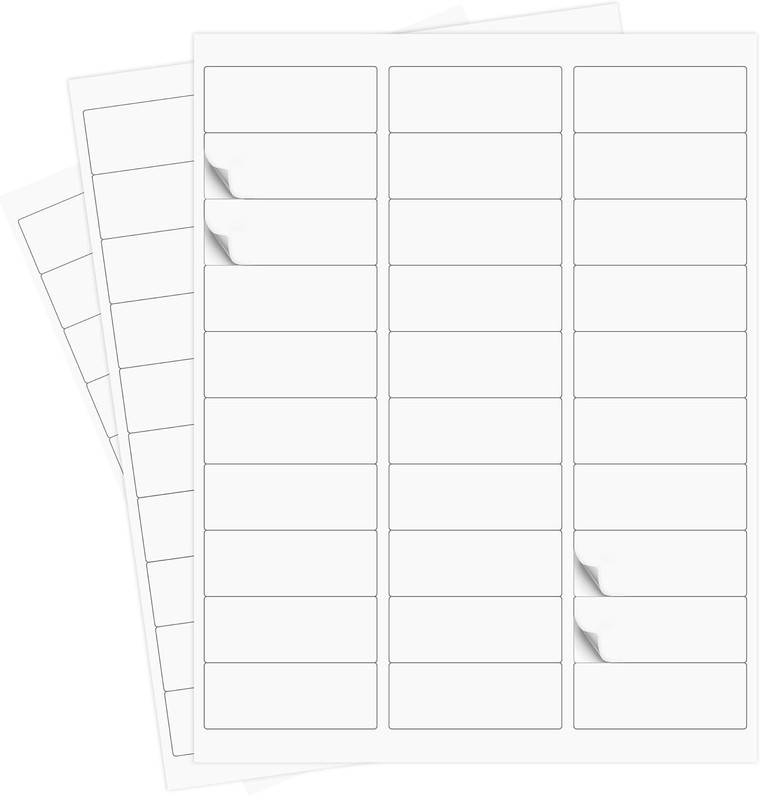
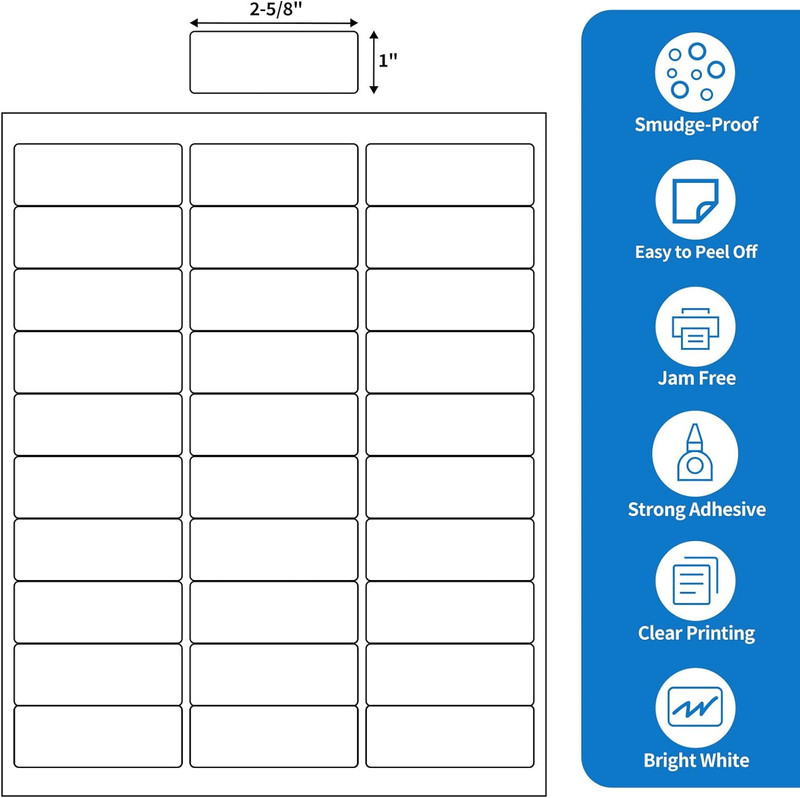
A 30-up sheet holds 30 small labels on one letter size page. That layout suits FBA labels for a few reasons:
- Batch printing. One sheet labels 30 units, so a shipment of a few hundred items only takes a short stack of pages.
- No special printer. Sheets run through a regular laser or inkjet printer, which helps new sellers who have not bought a thermal printer yet.
- Bulk supply. Our 30-up self adhesive labels come with 1000 sheets and 30 labels per sheet for 30,000 labels in total, enough for many shipments.
Before you buy any label sheet for FBA, compare the label size on the product page with the current label size requirements in your Seller Central account. The marketplace sets a minimum label size and supports a specific list of sheet layouts, and those requirements can change.
How to Print FBA Labels Step by Step
- Create or open your shipment. In Seller Central, go to the shipment workflow and find the step where you print item labels for each product.
- Enter the quantity. Type the number of labels you need for each product. Print a few extra so you have spares for damaged labels.
- Choose the 30-up layout. In the label format or paper type drop down, select the option that matches a sheet with 30 labels per page. Matching the layout to your sheet is the most important step for good alignment.
- Download the PDF. The labels are generated as a PDF file. Open it in a PDF reader rather than printing straight from the browser if you have alignment problems.
- Set the print scale to 100 percent. In the print dialog, choose Actual Size or 100 percent and turn off Fit to Page or Shrink to Fit. Scaling is the most common reason labels drift off the edges.
- Print a test page on plain paper. Hold the test page over a label sheet against a window or light. If the text and barcodes fall inside each label outline, you are ready.
- Load the label sheets correctly. Check which side your printer prints on and load the sheets face up or face down accordingly. Print one sheet first before running a large batch.
- Scan a sample. If you have a barcode scanner or a scanning app, test a few labels to confirm they read cleanly before labeling the whole shipment.
Printer Settings That Improve FBA Labels
Laser printers
Laser printers produce crisp, smudge resistant barcodes, which makes them a strong choice for sheet labels. Use the labels or heavy paper media setting if your printer has one so the toner bonds well to the label face.
Inkjet printers
Inkjet printers work too, but give the ink time to dry before you peel or stack the sheets. Use a normal or high quality setting rather than draft mode, because faded bars are harder to scan.
When to move to a thermal printer
Once you ship high volumes, many sellers move to a thermal roll printer for speed. Until then, laser or inkjet sheets are a practical, low cost way to label inventory.
Where to Place FNSKU Labels on Products
- Cover old barcodes. Place the FNSKU label over any manufacturer UPC or EAN barcode so only one barcode can be scanned.
- Use a flat surface. Apply the label to a flat side of the package, not over a curve, seam, corner or opening.
- Keep it visible. The label should be on the outside of the unit and not hidden by polybags or wrapping. If a unit is bagged, label the outside of the bag or make sure the label reads clearly through it.
- Press it down firmly. Rub the label from the center outward so the edges do not lift in transit.
Common FBA Label Mistakes to Avoid
- Wrong layout selected. Printing a 30-up PDF on a different sheet layout misaligns every label on the page.
- Scaling turned on. Fit to Page shrinks the barcodes and pushes them across label edges.
- Mixing up products. Print and apply labels for one product at a time, and clear your work area before starting the next product so labels do not end up on the wrong item.
- Low ink or toner. Streaks and faded bars can make barcodes unreadable. Check print quality on the first sheet of every batch.
- Storing sheets badly. Keep unused label sheets flat in their box, away from heat and humidity, so they feed smoothly and the adhesive stays fresh.
Frequently Asked Questions
Can I print FBA labels with an inkjet printer?
Yes. Sheet labels work in laser and inkjet printers. With inkjet, use a good quality setting and let the ink dry fully before handling so the barcode does not smear.
Why are my FBA labels not lining up on the sheet?
The usual causes are print scaling and a layout mismatch. Set the print scale to 100 percent or Actual Size, and select the label format in Seller Central that matches the number of labels on your sheet.
Do I need to cover the manufacturer barcode?
Yes. When you use FNSKU labels, cover any existing UPC or EAN barcode on the outside of the unit so the warehouse scans only your FNSKU.
Can I use the same 30-up labels for other jobs?
Yes. A 30-up sheet is also useful for address labels, inventory and bin labels, SKU stickers and file labels, so a bulk box is not limited to FBA prep.
Stock Up Before Your Next Shipment
Getting your FBA labels right the first time saves prep hours and avoids problems at check in. Pick up our 30-up laser and inkjet self adhesive labels, browse our laser and inkjet shipping labels, or explore all of our shipping supplies to keep your packing station ready.
Recent Posts
-
How to Store Christmas Cookies in Food Containers
Holiday baking usually happens in big batches, and that is where the trouble starts. Crisp gingersna …Nov 19, 2026 -
Pet Food Storage Bins: Keep Kibble Fresh and Organized
A big bag of dog or cat food is the best value at the store, but once it is open it becomes a proble …Nov 19, 2026 -
Clear vs Brown Packing Tape: Which Should You Use
Standing in front of a shelf of packing tape, the first choice you face is not width or roll length. …Nov 19, 2026