How to Print Address Labels From Excel: Step-by-Step Guide
Holiday cards, client mailers, invoices, event invitations: sooner or later every home office and small business needs to print address labels from an Excel spreadsheet. Hand-writing 200 envelopes takes an afternoon. A mail merge does it in minutes, and once your template is saved you can reuse it every season.
This step-by-step guide walks through setting up your address list, running a mail merge in Microsoft Word, choosing the right label sheet, and fixing the alignment problems that waste the most labels.

Step 1: Clean Up Your Address List in Excel
A mail merge is only as good as the spreadsheet behind it. Spend five minutes here and you avoid reprinting whole sheets later.
- One header row. Put column names in row 1 only: First Name, Last Name, Company, Address 1, Address 2, City, State, ZIP.
- One person or business per row. No blank rows in the middle of the list, and no merged cells.
- Keep ZIP codes as text. Excel drops leading zeros, so 07001 becomes 7001. Format the ZIP column as Text before typing or pasting, or use the Special > Zip Code format.
- Split combined fields. If a full address sits in one cell, use Data > Text to Columns to separate it.
- Remove duplicates. Data > Remove Duplicates catches people who appear twice.
- Save and close the file before you start the merge. Word cannot always read a workbook that is open.
Step 2: Pick the Right Label Sheet
The label layout you buy decides what you can print. Here is how the common formats are used:
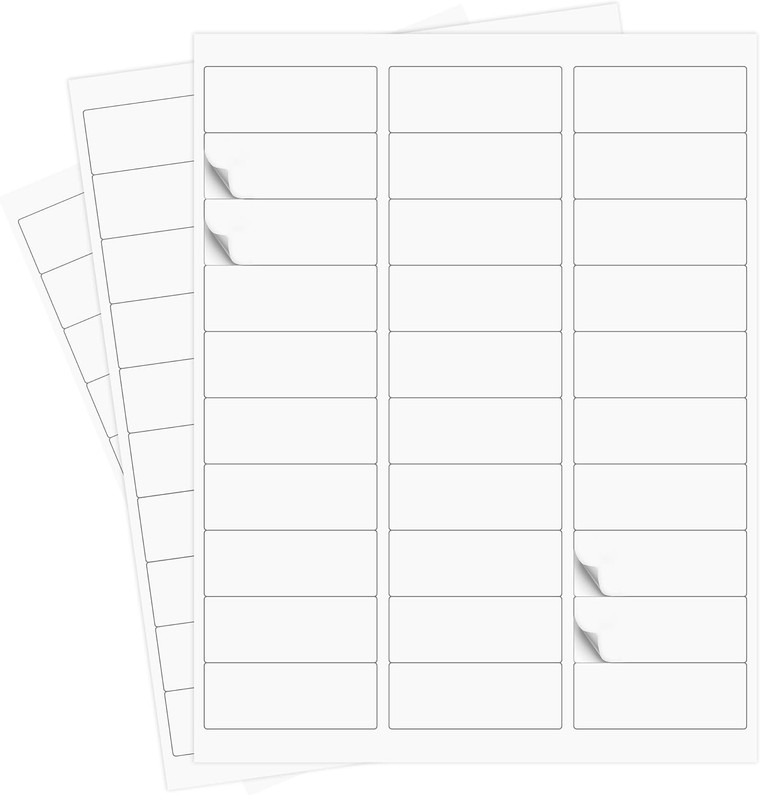
- 30 labels per sheet is the classic return address and mailing label layout for envelopes. It is the most economical way to address letters and cards in bulk.
- 6 labels per sheet gives you a larger label for padded mailers, large envelopes and small boxes where you want room for a logo or a longer address.
- 2 labels per sheet (half sheet) is the format most online sellers use for shipping labels generated by carrier and marketplace software.
Before you build the template, measure one label on your sheet (or read the size printed on the package) and count rows and columns. You will match those numbers in Word.
Step 3: Print Address Labels From Excel With Word Mail Merge
- Open a new blank document in Microsoft Word.
- Go to Mailings > Start Mail Merge > Labels.
- Under Label Options, choose your printer type (page printers for laser and most inkjets). Pick a label product from the list whose size and layout match your sheet, or click New Label and enter the label height, width, margins, pitch and the number across and down.
- Click Select Recipients > Use an Existing List, browse to your Excel file and choose the worksheet that holds the addresses. Leave "First row of data contains column headers" checked.
- Use Edit Recipient List to uncheck anyone you do not want to mail this time.
- Click in the first label and choose Address Block, or build the layout yourself with Insert Merge Field so each field sits on the right line.
- Click Update Labels to copy that layout to every label on the page.
- Click Preview Results and scroll through a few labels. Look for missing ZIP zeros, long company names wrapping, and blank Address 2 lines.
- Click Finish & Merge > Edit Individual Documents to create a normal document you can review and print.
- Save the merged file and the label template so you can reuse them next time.

Step 4: Test Print and Fix Alignment
Never feed your first real label sheet without a test. Print page one on plain paper, hold it behind a label sheet against a window or bright light, and check that every address sits inside its label.
Common alignment fixes
- Text drifts lower on each row: the vertical pitch is off. Adjust it in Label Options under Details.
- Whole page is shifted: change the top or side margin, not the font size.
- Printer scaled the page: turn off "Fit to page" or "Shrink oversized pages" and print at 100 percent (actual size).
- Labels curl or jam: feed one sheet at a time through the manual or bypass tray, and fan the stack before loading.
- Smudged ink: on inkjets, let sheets dry for a minute before stacking.
Tips for Big Mailing Runs
- Sort your spreadsheet by ZIP code before merging so finished labels come out in mailing order.
- Use a clear, plain font at 10 to 12 points. Fancy script fonts slow down sorting machines and are hard to read.
- Store label sheets flat in their box, away from humidity, so the adhesive and backing stay flat for the printer.
- Buy sheets in bulk if you mail every month. Our 30-up labels come 1,000 sheets per pack for 30,000 labels total, and the 6-up 3 1/3 x 4 inch labels give you 6,000 larger labels.
If you also ship packages, the 8.5 x 5.5 inch round corner half sheet shipping labels print two labels per sheet on a standard printer and are sold in packs from 100 to 2,000 sheets.
Frequently Asked Questions
Can I print address labels from Excel without Word?
Excel has no built-in label layout, so Word mail merge is the usual method on Windows and Mac. Some online label tools also import a CSV file saved from Excel.
Why are my ZIP codes missing the first zero?
Excel stores them as numbers. Format the ZIP column as Text or Zip Code, re-enter or paste the values, save, and run the merge again.
Do laser/inkjet labels work in both printer types?
Yes, the labels listed here are made for both laser and inkjet printers. Use the plain paper or labels media setting and feed one sheet at a time if your printer tends to jam on thicker stock.
How do I print only part of my list?
In Edit Recipient List, uncheck the rows you want to skip, or use the Filter option to select a state, ZIP range or customer group.
Start Your Next Mailing
With a clean spreadsheet and a saved template, printing address labels from Excel becomes a five-minute job. Stock up on 30 per sheet address labels or 6 per sheet labels, and see all laser and inkjet labels in our shipping supplies store.
Recent Posts
-
How to Organize Toys With Clear Storage Bins
Toy clutter tends to peak right before the holidays, when birthday gifts from the year are still sca …Oct 23, 2026 -
Folding Chairs for Church Halls and Community Centers
Church halls, fellowship rooms and community centers ask more of their seating than almost any home. …Oct 23, 2026 -
Restaurant Bus Cart Guide: Using a Utility Cart for Bussing
Every busy dining room hits the same wall at some point in a shift: dirty plates stack up, servers m …Oct 23, 2026